

Introduction
This guide walks you through an AI-assisted development flow for building a token swap UI on Solana. Its standout feature is a panel that displays the user’s most frequently traded pairs and lets them select one with a single click. This makes it a personalized experience. Each section shows the exact prompts that were used, what the model produced as output, and how we used the Helius AI toolkit. This guide showcases the following technologies:- Phantom wallet integration
- DFlow for quotes and swaps
- Helius Sender for fast transaction sending
- Helius Enhanced Transactions for transaction parsing
Final result
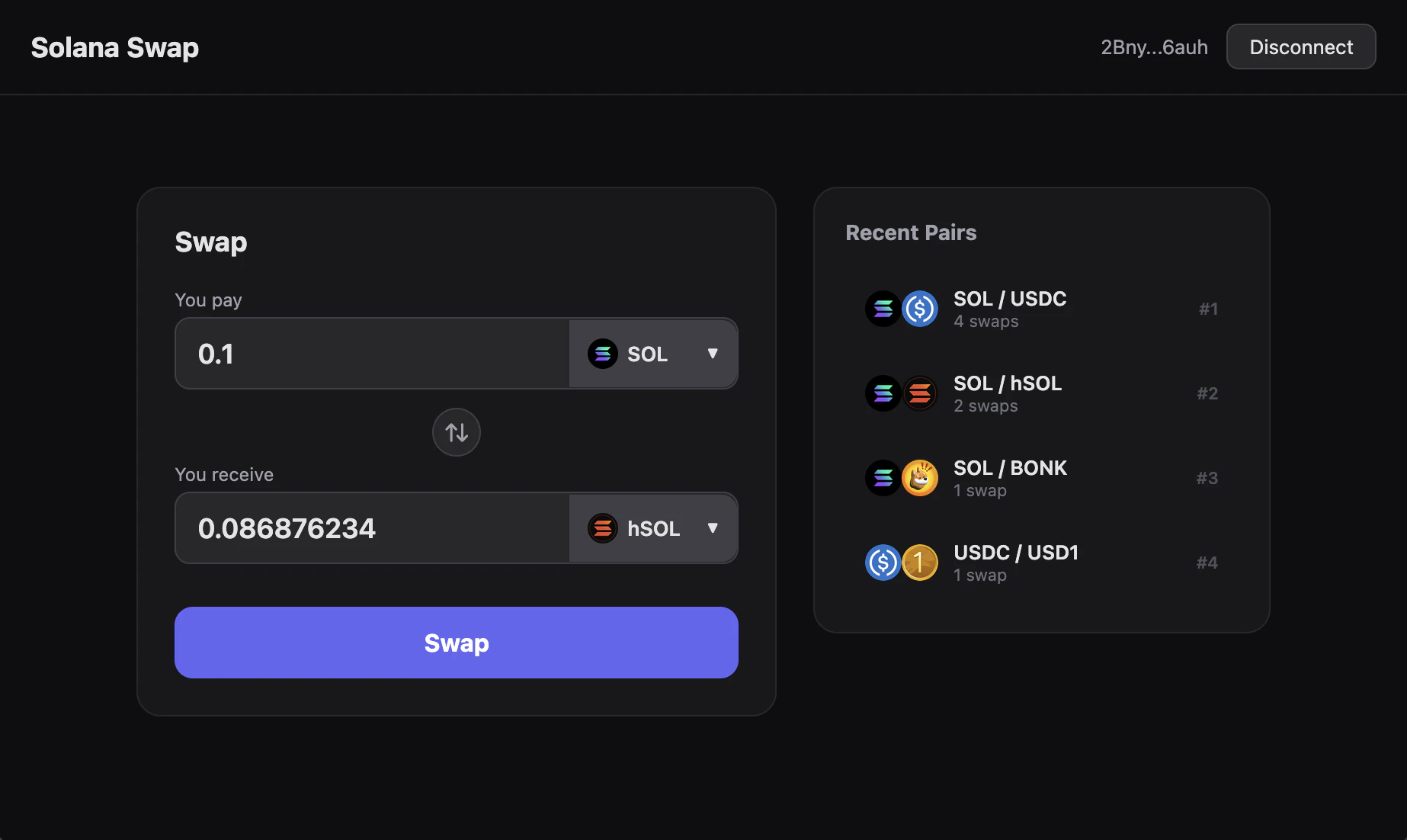
Personalized swap UI with recent pairs panel
Setup
Before you start, install the Helius Claude Code plugin. Inside Claude Code, run these as two separate commands:Initial prompt
Use this prompt to define the full UI and behavior in one pass:Prompt
Build a personalized token swap interface for Solana.Add a token swap UI in the regular style: a centered box with two token selectors and a swap button.To its right, display a list of token pairs the user can pick directly. Display the logo of each token alongside its name.To compute the list, do this: After a user connects their wallet, look at their swap history and extract the 10 most recent trading pairs they used. Sort them by frequency of swaps.
- The core layout (swap box + recent pair rail)
- The personalization rule (wallet history)
- The ranking strategy (frequency from recent usage)
Let me scaffold the project. I’ll create a Vite + React + TypeScript app with Phantom wallet connection, DFlow swaps via Helius Sender, and swap history from the Helius Wallet API.This is a sensible stack:
- Vite + React + TypeScript for a modern, type-safe UI
- Phantom for wallet connection and signing
- DFlow for the best quotes
- Helius APIs for wallet history
- Helius Sender for transaction sending
.env file with our Helius API key. After doing so, we started the app with npm run dev:
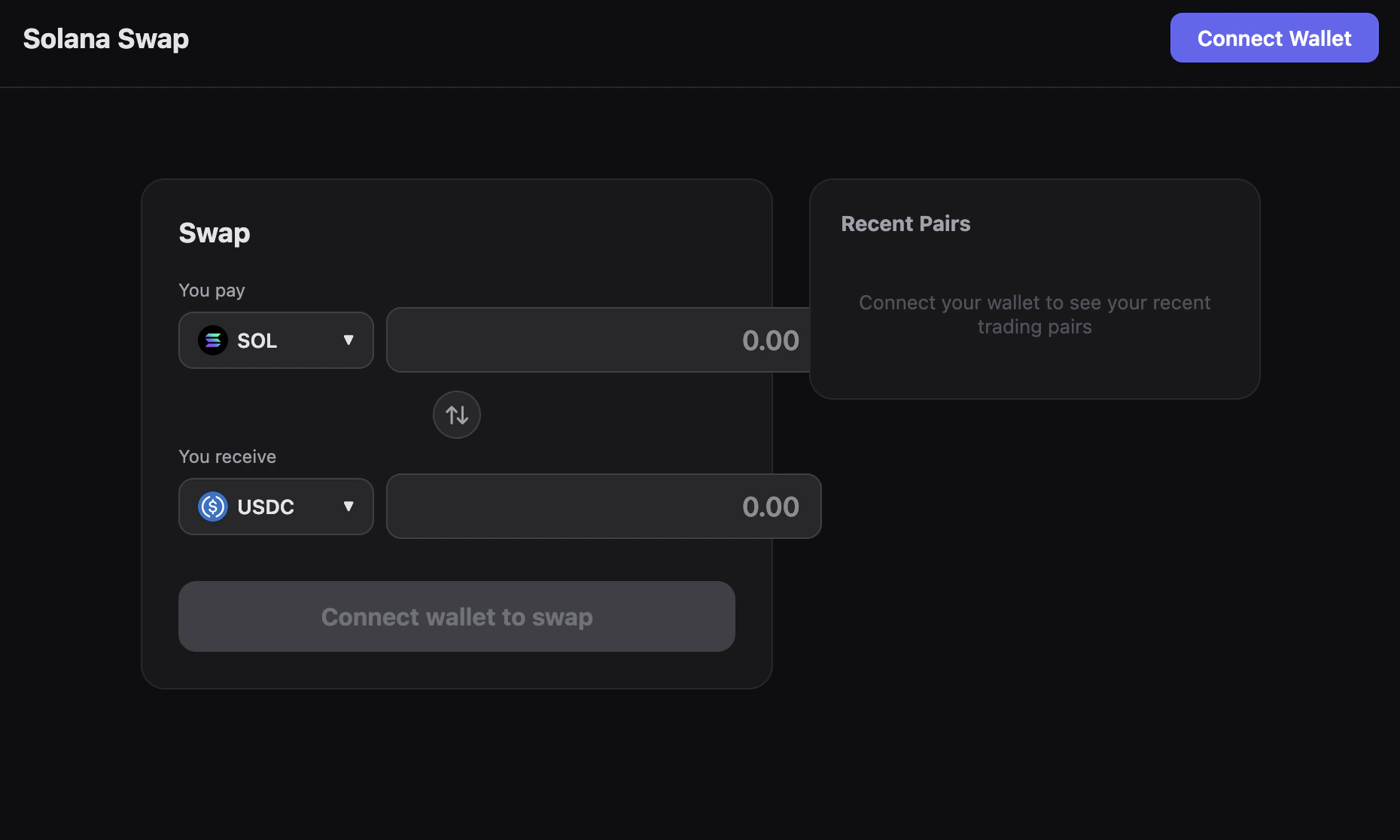
Initial version of the app
Missing recent pairs
After connecting our wallet, we observed that the recent pairs panel was missing some trading pairs that we recently swapped. So, we asked the agent to investigate:Prompt
It’s not showing Bonk / SOL as Recent Pair even though it has recent swaps. Can you check why?2BnyMbNYLjYorNwbPjhUBHSQBTbCTjuqouQwZiYY6auh
getTransactionHistory and parseTransactions.
This allowed it to quickly identify the bug:
The code relies solely on events.swap instead of analyzing actual token transfers.
Let me fix the swap history extraction to use tokenTransfers and nativeTransfers directly.So, it fixed the problem by changing how we detect trading pairs: We now simply check which tokens were transferred in and out of the wallet in a transaction. We now see all of our trading pairs in the app:
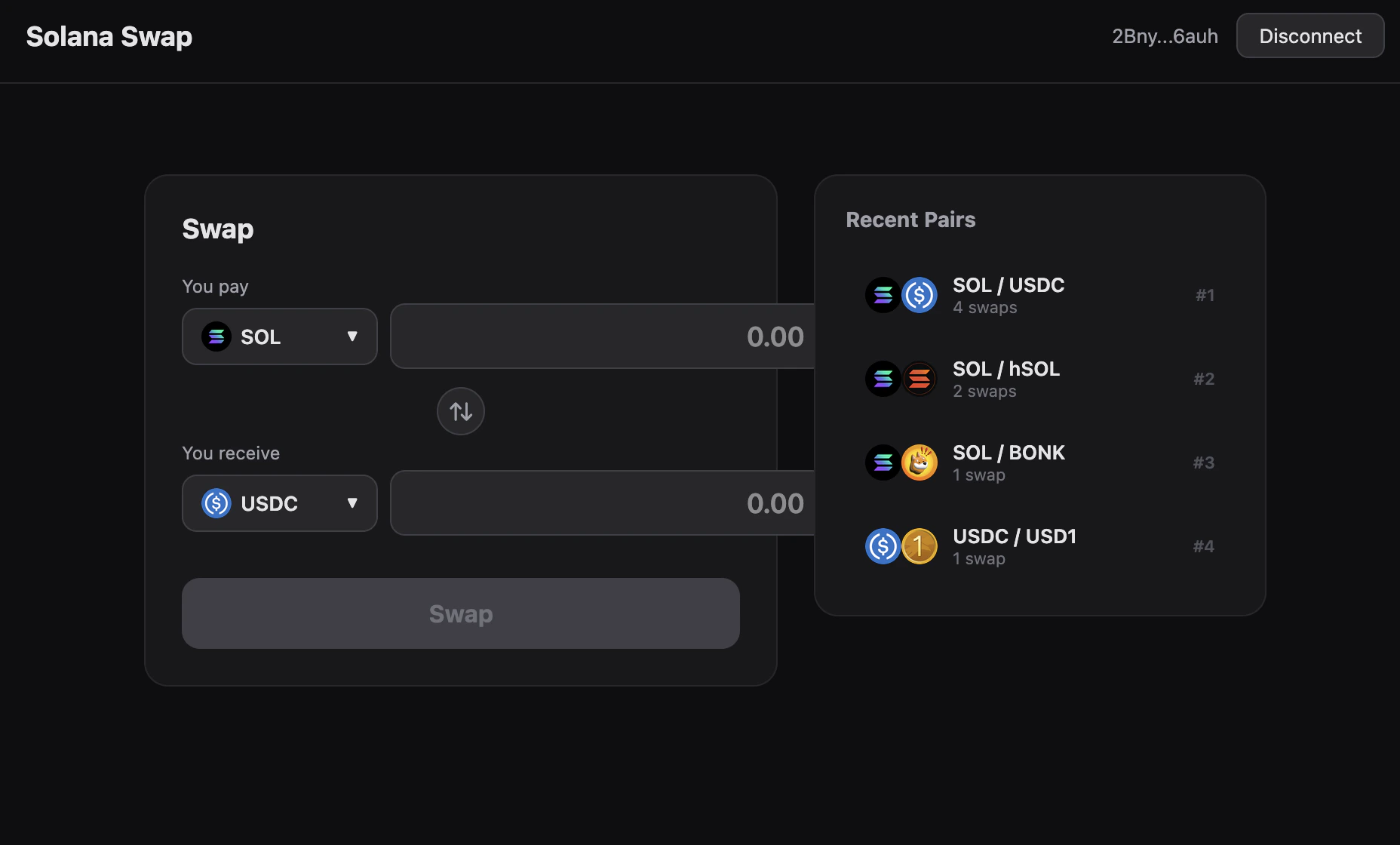
All trading pairs shown
UI refinement
While the overall design of the app is already good, the swap UI’s layout still needs some refinement:Prompt
Fix the design of the token selector box:Put the token selector on the right.Make the width of the input field for the amount flexible so that it fits neatly into the box.
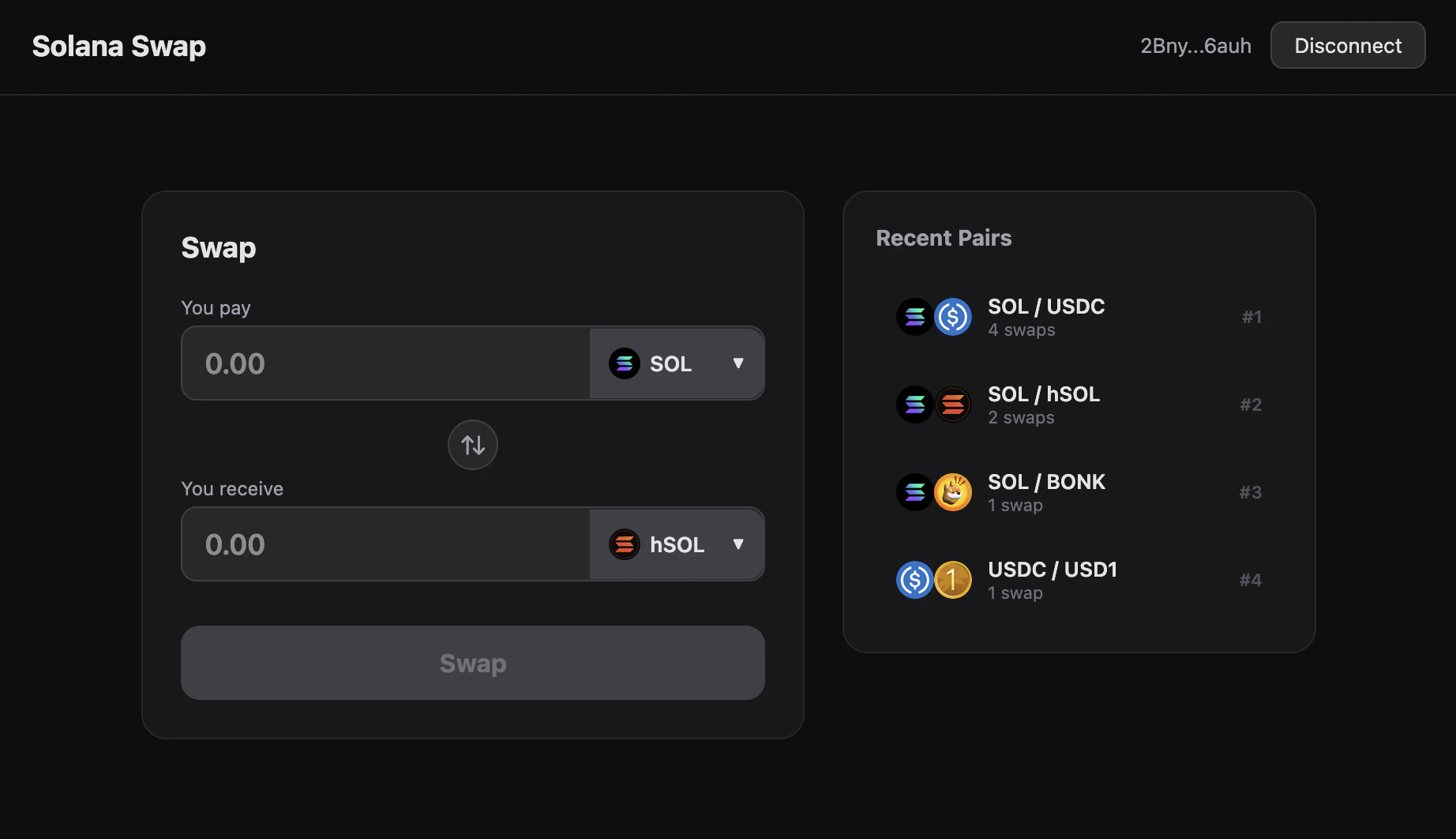
New layout for the token selector box
Quote display
At the moment, the token amounts in the swap UI have to be set manually. This means that the user doesn’t see how many tokens they’ll get in return. It would be useful to automatically populate the token amount field by a recent DFlow quote.Prompt
When the user has entered an amount for one token, get a quote and display the output amount for the other token.
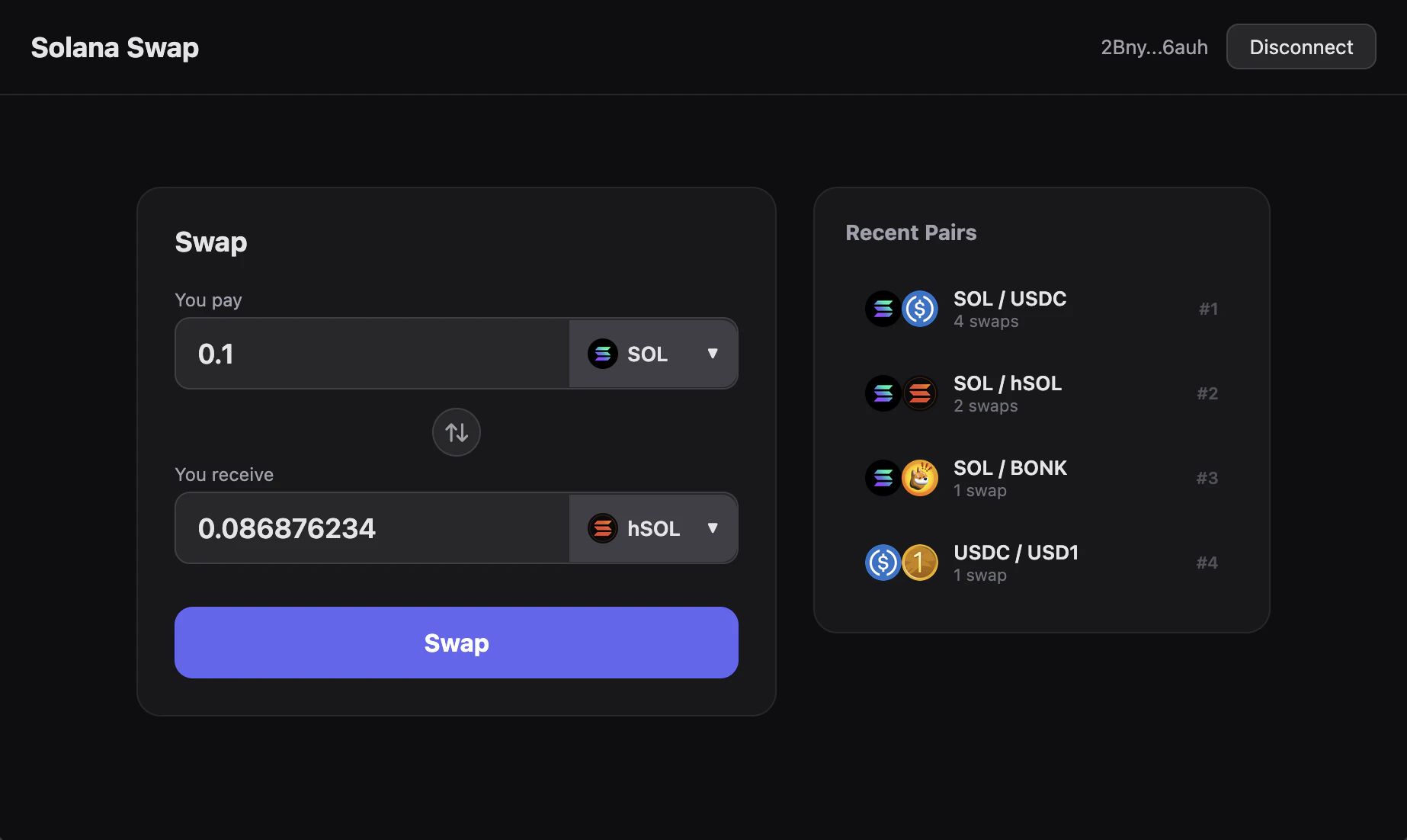
Quote preview showing the output amount in the receive field
Add swap information
Once a swap lands, the user has no way to verify it on-chain. Let’s add that to the UI:Prompt
Please print the full transaction signature once the swap is successful. Also link it to an explorer.
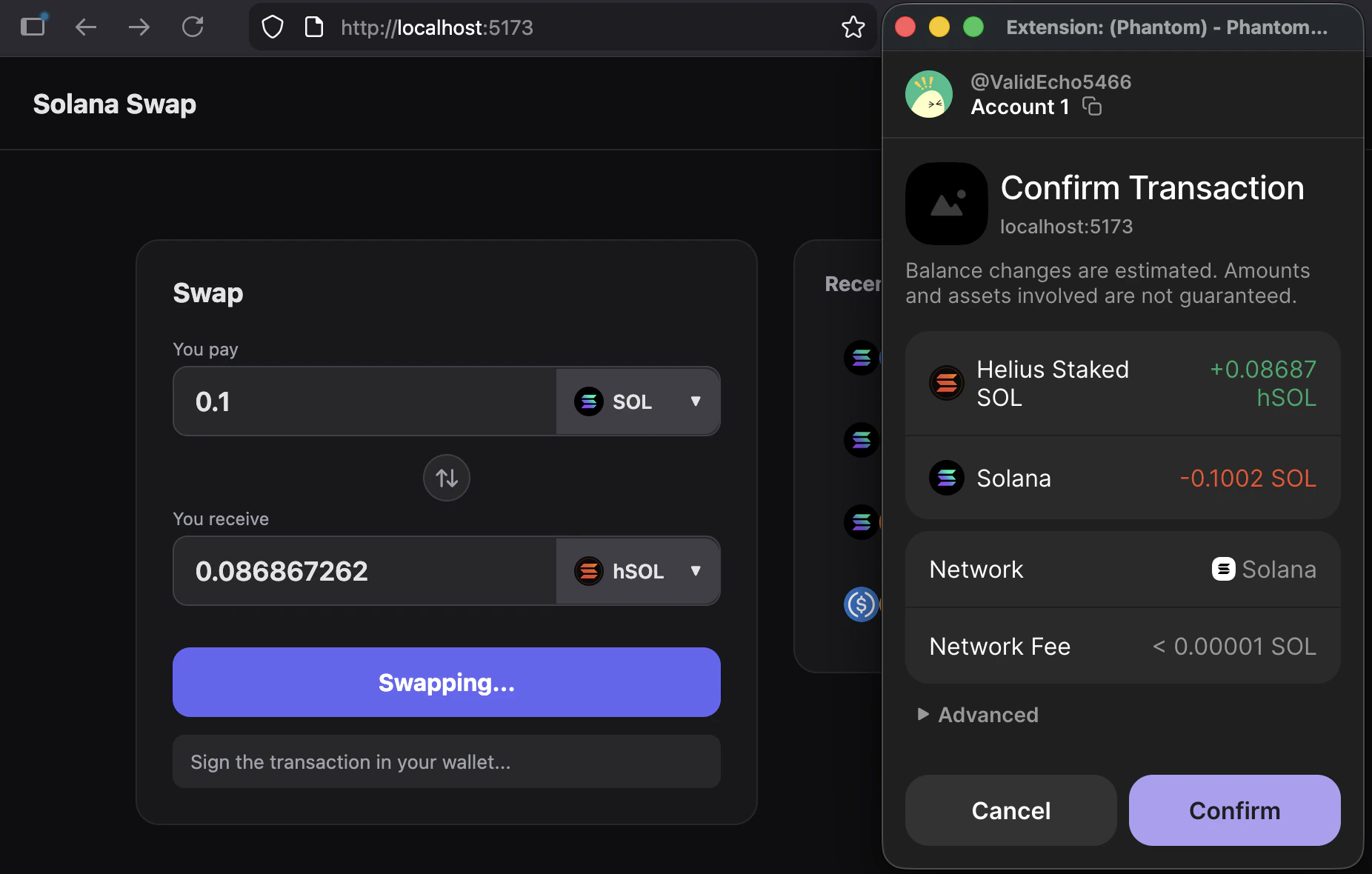
Wallet confirmation popup during swap signing
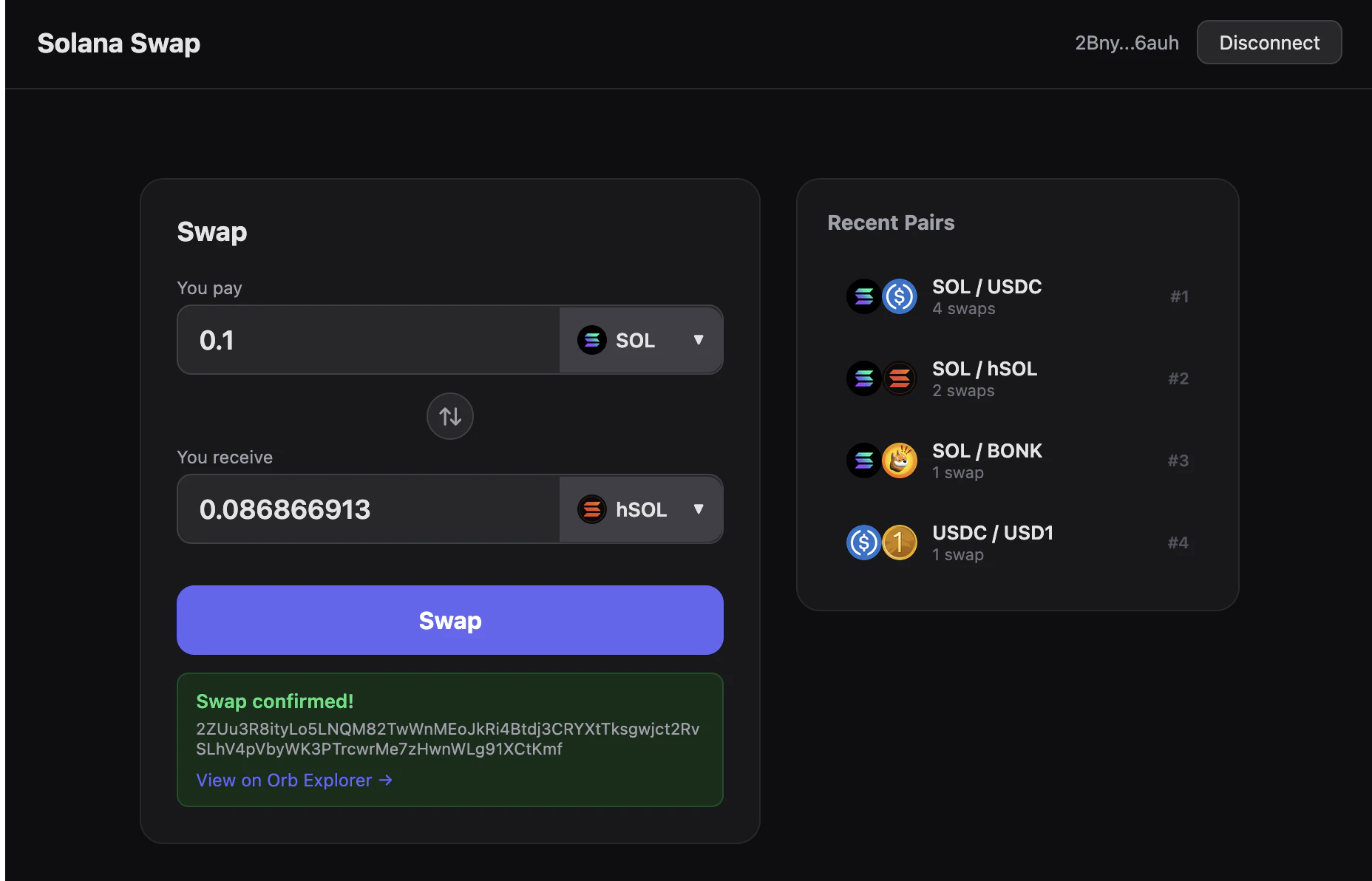
Successful swap output with full signature and explorer link