> ## Documentation Index
> Fetch the complete documentation index at: https://www.helius.dev/docs/llms.txt
> Use this file to discover all available pages before exploring further.
# Solana専用ノード設定:完全ガイド
> gRPCストリーミング、Yellowstoneプラグイン、最適なブロックチェーンデータ設定を備えたSolana専用ノードのセットアップ完全ガイド。
## 専用ノードの注文方法
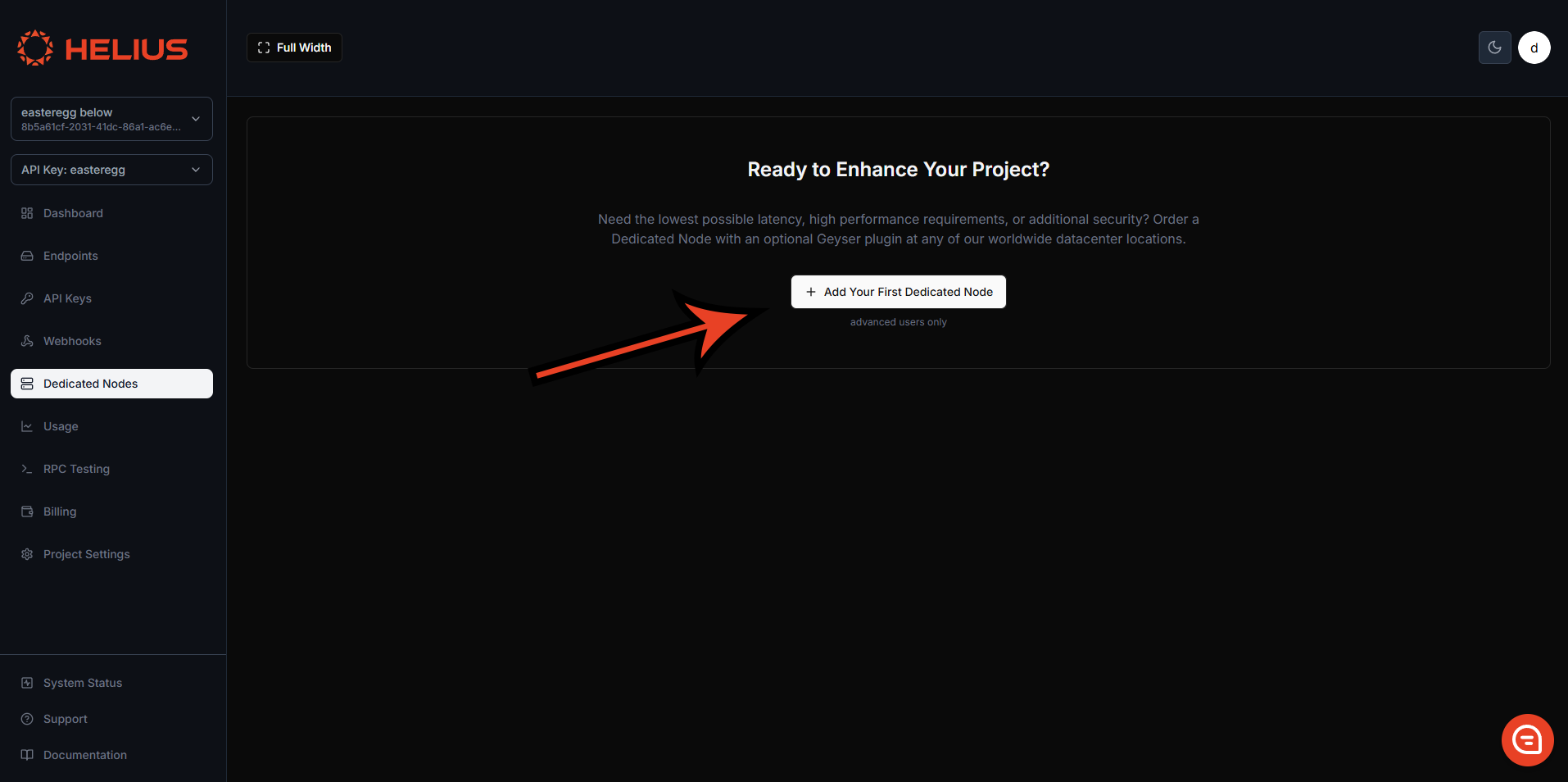
専用ノードは[開発者ポータル](https://dashboard.helius.dev/dedicated-nodes)の専用ノードタブから直接注文できます。
 ### ノードタイプ
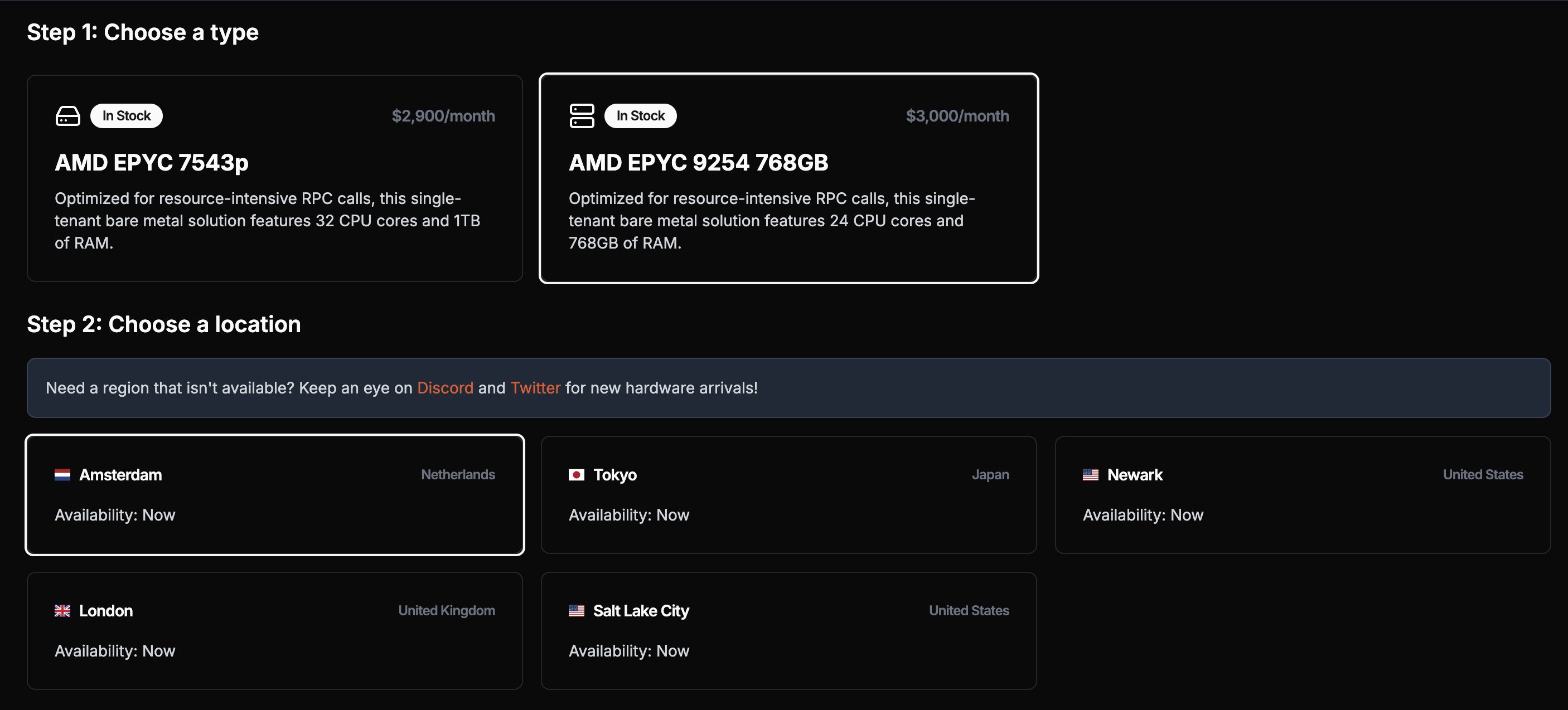
選択するノードのタイプは、あなたの要件に依存します。私たちはレート制限を設けていないため、ノードのパフォーマンスはその仕様に完全に依存します。
**gRPCストリーミングアプリケーション向け**(主な使用ケース)の場合、どのノードタイプでも問題なく動作します。
**重要**:[`getProgramAccounts`](/ja/api-reference/rpc/http/getprogramaccounts)はサポートされていますが、専用ノードはこれらの呼び出しに最適化されていません。大量の使用はノードのパフォーマンスに影響を及ぼすか、ノードの障害を引き起こす可能性があります。これらのクエリには、カスタムインデクサを備えた共有プランを使用すると、これらの呼び出しがより迅速で信頼性の高いものになります。
### ノードタイプ
選択するノードのタイプは、あなたの要件に依存します。私たちはレート制限を設けていないため、ノードのパフォーマンスはその仕様に完全に依存します。
**gRPCストリーミングアプリケーション向け**(主な使用ケース)の場合、どのノードタイプでも問題なく動作します。
**重要**:[`getProgramAccounts`](/ja/api-reference/rpc/http/getprogramaccounts)はサポートされていますが、専用ノードはこれらの呼び出しに最適化されていません。大量の使用はノードのパフォーマンスに影響を及ぼすか、ノードの障害を引き起こす可能性があります。これらのクエリには、カスタムインデクサを備えた共有プランを使用すると、これらの呼び出しがより迅速で信頼性の高いものになります。
 ### ノード場所
北米(ピッツバーグ、ニューアーク、ソルトレイクシティ、ロサンゼルス、バンクーバー)、ヨーロッパ(ダブリン、ロンドン、アムステルダム、フランクフルト)、アジア(東京、シンガポール)にわたって、グローバルなSolanaインフラを使用した最良の地理的カバレッジを保証するために、複数の地域にノードを提供しています。
最適なレイテンシーを得るためにサーバーに最も近いノードを選択してください。支払いから3時間以内にノードがデプロイされます。
### ノードクライアント
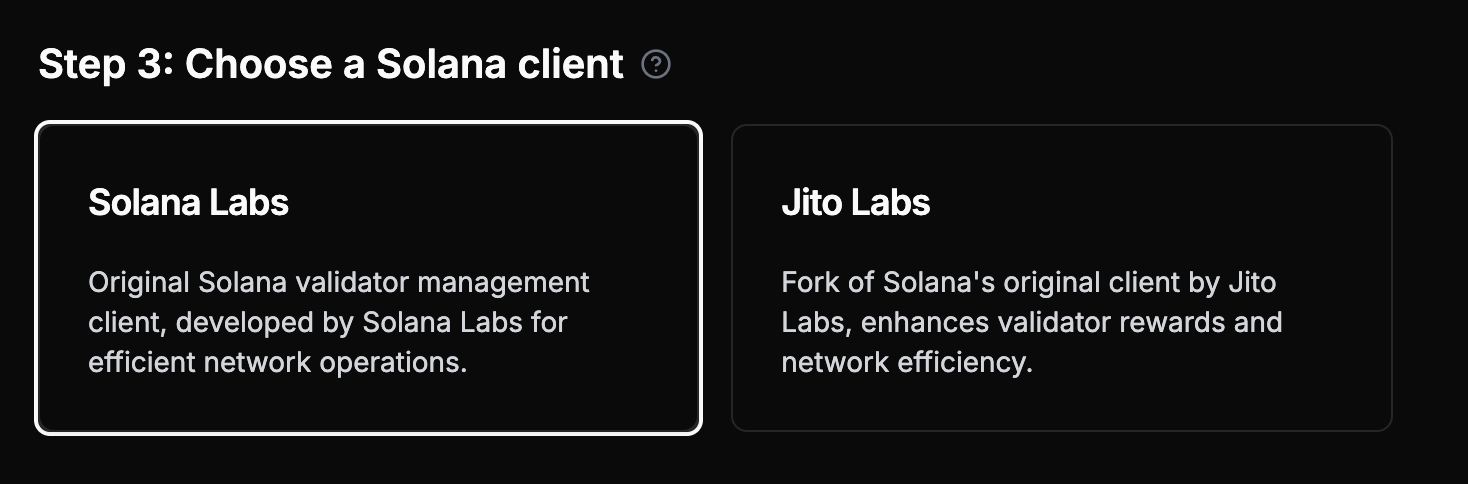
クライアントタイプを選択することで、ノードをカスタマイズできます — AgaveまたはJito Labs(追加のメソッド`simulateBundle`を備えたAgaveのフォーク)。
### ノード場所
北米(ピッツバーグ、ニューアーク、ソルトレイクシティ、ロサンゼルス、バンクーバー)、ヨーロッパ(ダブリン、ロンドン、アムステルダム、フランクフルト)、アジア(東京、シンガポール)にわたって、グローバルなSolanaインフラを使用した最良の地理的カバレッジを保証するために、複数の地域にノードを提供しています。
最適なレイテンシーを得るためにサーバーに最も近いノードを選択してください。支払いから3時間以内にノードがデプロイされます。
### ノードクライアント
クライアントタイプを選択することで、ノードをカスタマイズできます — AgaveまたはJito Labs(追加のメソッド`simulateBundle`を備えたAgaveのフォーク)。
 専用ノードは**独自に**Jitoバンドルを送信できません。Jitoバンドルを送信するには、Jitoのシステムを通じてバンドルをパッケージ化して送信するJito APIを使用する必要があります。
### Geyserプラグイン(推奨)
**専用ノードの主要使用ケースである[Yellowstone](https://github.com/helius-labs/yellowstone-grpc)Geyserプラグインを追加することを強くお勧めします**。スロット、ブロック、トランザクション、アカウントの更新の高性能[gRPCストリーミング](/ja/grpc)を提供します。
専用ノードは**独自に**Jitoバンドルを送信できません。Jitoバンドルを送信するには、Jitoのシステムを通じてバンドルをパッケージ化して送信するJito APIを使用する必要があります。
### Geyserプラグイン(推奨)
**専用ノードの主要使用ケースである[Yellowstone](https://github.com/helius-labs/yellowstone-grpc)Geyserプラグインを追加することを強くお勧めします**。スロット、ブロック、トランザクション、アカウントの更新の高性能[gRPCストリーミング](/ja/grpc)を提供します。
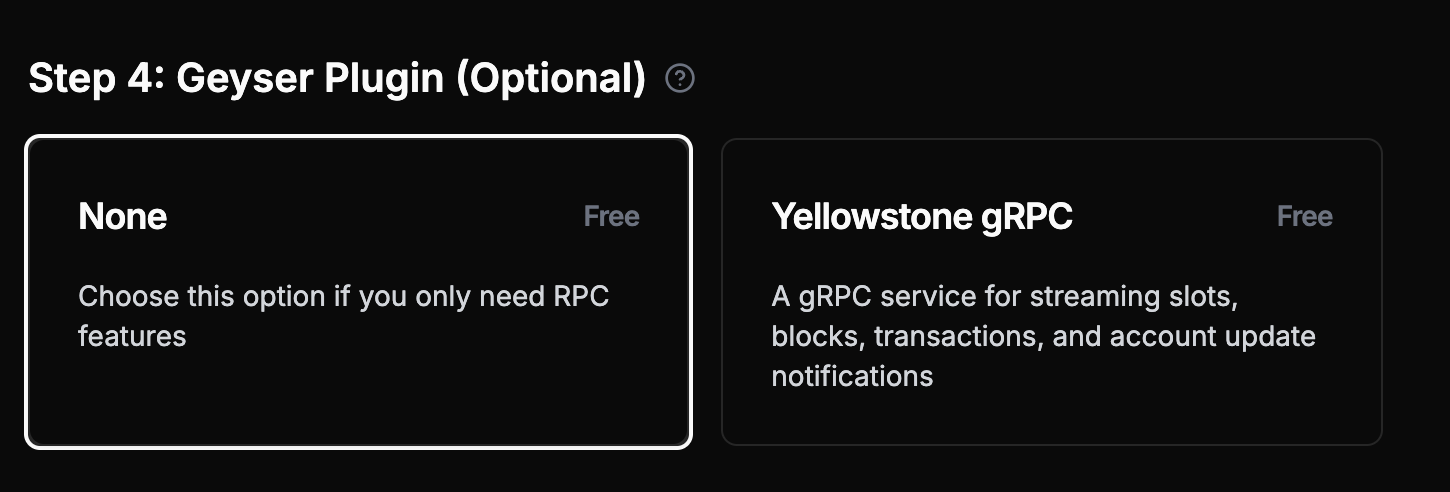 **ベストプラクティス**:専用ノードはgRPCストリーミングに最適化されています。トランザクションの送信、アーカイブクエリ、複雑なRPC操作には共有プランを使用してください。
### 支払いオプション
決済は法定通貨または暗号通貨(USDC)で行うことができます。支払いが完了すると、3時間以内にノードがデプロイされます。
請求書は、法定通貨での支払いの場合、ノードのプロビジョニングに要した日数に対する割引が次月の請求に適用されます。暗号通貨での支払いの場合、請求サイクルはノードが納品された時点から始まります。
### デモ
## はじめに
専用ノードが設定され、準備が整ったら(ステータス:**成功**)、作業を開始できます。
## 専用ノードへの接続
### gRPCストリーミング(主な使用ケース)
**専用ノードはYellowstone Geyserプラグインを介したgRPCストリーミングに最適化されています。** これは専用ノードを使用するための推奨される方法です。
**gRPCストリーミングにLaserStreamを検討してください**:LaserStreamは優れたパフォーマンス、信頼性、24時間の履歴リプレイなどの高度な機能を備えています。これは99%のストリーミング使用ケースに推奨されます。[LaserStreamと専用ノードの比較](/ja/laserstream/laserstream-vs-dedicated-nodes)で最適なソリューションを評価するか、Heliusダッシュボードで[LaserStreamの使用を開始する](https://dashboard.helius.dev/laserstream)ことができます。
### 基本RPCとWebsocket(限定機能)
各専用ノードは基本的なRPC機能も提供しますが、制限があります。**本番アプリケーションでは、専用ノードと共有プランを組み合わせて使用してください。**
ここでは、Solana web3.jsを使用して、専用ノードを使って[`getSlot`](/ja/api-reference/rpc/http/getslot)を呼び出しています。
```javascript theme={"system"}
// Using @solana/web3.js
const { Connection } = require('@solana/web3.js');
const connection = new Connection('https://liveried-grazings-gxzjabdgqa-dedicated.helius-rpc.com?api-key=465964ff-f718-47d2-a51c-66ddcce332d7');
// Get the current slot
const getSlot = async () => {
const slot = await connection.getSlot();
console.log('Current slot:', slot);
};
getSlot();
```
新しいスロットをストリームするためにネイティブのWebsocket接続をセットアップする方法は次のとおりです。
```javascript theme={"system"}
const Websocket = require('ws');
const ws = new Websocket('wss://liveried-grazings-gxzjabdgqa-dedicated.helius-rpc.com?api-key=465964ff-f718-47d2-a51c-66ddcce332d7 ');
ws.onopen = () => {
ws.send(JSON.stringify({
jsonrpc: '2.0',
id: 1,
method: 'slotSubscribe'
}));
};
ws.onmessage = (event) => {
console.log(JSON.parse(event.data));
};
```
**注意**:上記のRPC例は基本機能のみを説明しています。専用ノードの制限事項:
* [`sendTransaction`](/ja/api-reference/rpc/http/sendtransaction)はサポートされていますが最適化されていません - ほとんどのトランザクションは到達しません(信頼性のあるトランザクション送信には共有プランを使用)
* アーカイブデータクエリはありません(共有プランを使用)
* [`getProgramAccounts`](/ja/api-reference/rpc/http/getprogramaccounts)はサポートされていますが最適化されていません - 大量使用はパフォーマンスに影響を与えたり、ノード障害を引き起こしたりする可能性があります(信頼性のために共有プランを使用)
**主要な使用ケース**:最適なパフォーマンスのために、以下のgRPCストリーミングセットアップを使用してください。
### Geyserプラグインのセットアップ
Geyserプラグインを使用するにはYellowstoneリポジトリをクローンする必要があります:
```shell theme={"system"}
git clone https://github.com/helius-labs/yellowstone-grpc.git
```
#### CLIの使用
```sh theme={"system"}
cd yellowstone-grpc/examples/rust/
cargo run --bin client -- -e "https://liveried-grazings-gxzjabdgqa-dedicated-lb.helius-rpc.com:2053" --x-token 42f03938-1daa-4162-a457-bb551ecaf590 subscribe --slots
```
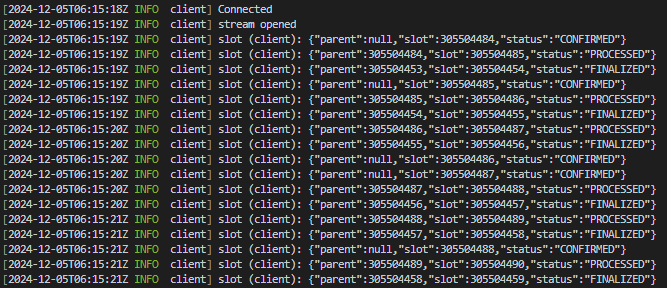
完了すると、ターミナルに新しいスロットが出力されるはずです。URLとトークンを自分のものに置き換えるのを忘れないでください。
**ベストプラクティス**:専用ノードはgRPCストリーミングに最適化されています。トランザクションの送信、アーカイブクエリ、複雑なRPC操作には共有プランを使用してください。
### 支払いオプション
決済は法定通貨または暗号通貨(USDC)で行うことができます。支払いが完了すると、3時間以内にノードがデプロイされます。
請求書は、法定通貨での支払いの場合、ノードのプロビジョニングに要した日数に対する割引が次月の請求に適用されます。暗号通貨での支払いの場合、請求サイクルはノードが納品された時点から始まります。
### デモ
## はじめに
専用ノードが設定され、準備が整ったら(ステータス:**成功**)、作業を開始できます。
## 専用ノードへの接続
### gRPCストリーミング(主な使用ケース)
**専用ノードはYellowstone Geyserプラグインを介したgRPCストリーミングに最適化されています。** これは専用ノードを使用するための推奨される方法です。
**gRPCストリーミングにLaserStreamを検討してください**:LaserStreamは優れたパフォーマンス、信頼性、24時間の履歴リプレイなどの高度な機能を備えています。これは99%のストリーミング使用ケースに推奨されます。[LaserStreamと専用ノードの比較](/ja/laserstream/laserstream-vs-dedicated-nodes)で最適なソリューションを評価するか、Heliusダッシュボードで[LaserStreamの使用を開始する](https://dashboard.helius.dev/laserstream)ことができます。
### 基本RPCとWebsocket(限定機能)
各専用ノードは基本的なRPC機能も提供しますが、制限があります。**本番アプリケーションでは、専用ノードと共有プランを組み合わせて使用してください。**
ここでは、Solana web3.jsを使用して、専用ノードを使って[`getSlot`](/ja/api-reference/rpc/http/getslot)を呼び出しています。
```javascript theme={"system"}
// Using @solana/web3.js
const { Connection } = require('@solana/web3.js');
const connection = new Connection('https://liveried-grazings-gxzjabdgqa-dedicated.helius-rpc.com?api-key=465964ff-f718-47d2-a51c-66ddcce332d7');
// Get the current slot
const getSlot = async () => {
const slot = await connection.getSlot();
console.log('Current slot:', slot);
};
getSlot();
```
新しいスロットをストリームするためにネイティブのWebsocket接続をセットアップする方法は次のとおりです。
```javascript theme={"system"}
const Websocket = require('ws');
const ws = new Websocket('wss://liveried-grazings-gxzjabdgqa-dedicated.helius-rpc.com?api-key=465964ff-f718-47d2-a51c-66ddcce332d7 ');
ws.onopen = () => {
ws.send(JSON.stringify({
jsonrpc: '2.0',
id: 1,
method: 'slotSubscribe'
}));
};
ws.onmessage = (event) => {
console.log(JSON.parse(event.data));
};
```
**注意**:上記のRPC例は基本機能のみを説明しています。専用ノードの制限事項:
* [`sendTransaction`](/ja/api-reference/rpc/http/sendtransaction)はサポートされていますが最適化されていません - ほとんどのトランザクションは到達しません(信頼性のあるトランザクション送信には共有プランを使用)
* アーカイブデータクエリはありません(共有プランを使用)
* [`getProgramAccounts`](/ja/api-reference/rpc/http/getprogramaccounts)はサポートされていますが最適化されていません - 大量使用はパフォーマンスに影響を与えたり、ノード障害を引き起こしたりする可能性があります(信頼性のために共有プランを使用)
**主要な使用ケース**:最適なパフォーマンスのために、以下のgRPCストリーミングセットアップを使用してください。
### Geyserプラグインのセットアップ
Geyserプラグインを使用するにはYellowstoneリポジトリをクローンする必要があります:
```shell theme={"system"}
git clone https://github.com/helius-labs/yellowstone-grpc.git
```
#### CLIの使用
```sh theme={"system"}
cd yellowstone-grpc/examples/rust/
cargo run --bin client -- -e "https://liveried-grazings-gxzjabdgqa-dedicated-lb.helius-rpc.com:2053" --x-token 42f03938-1daa-4162-a457-bb551ecaf590 subscribe --slots
```
完了すると、ターミナルに新しいスロットが出力されるはずです。URLとトークンを自分のものに置き換えるのを忘れないでください。
 ### TypeScript例
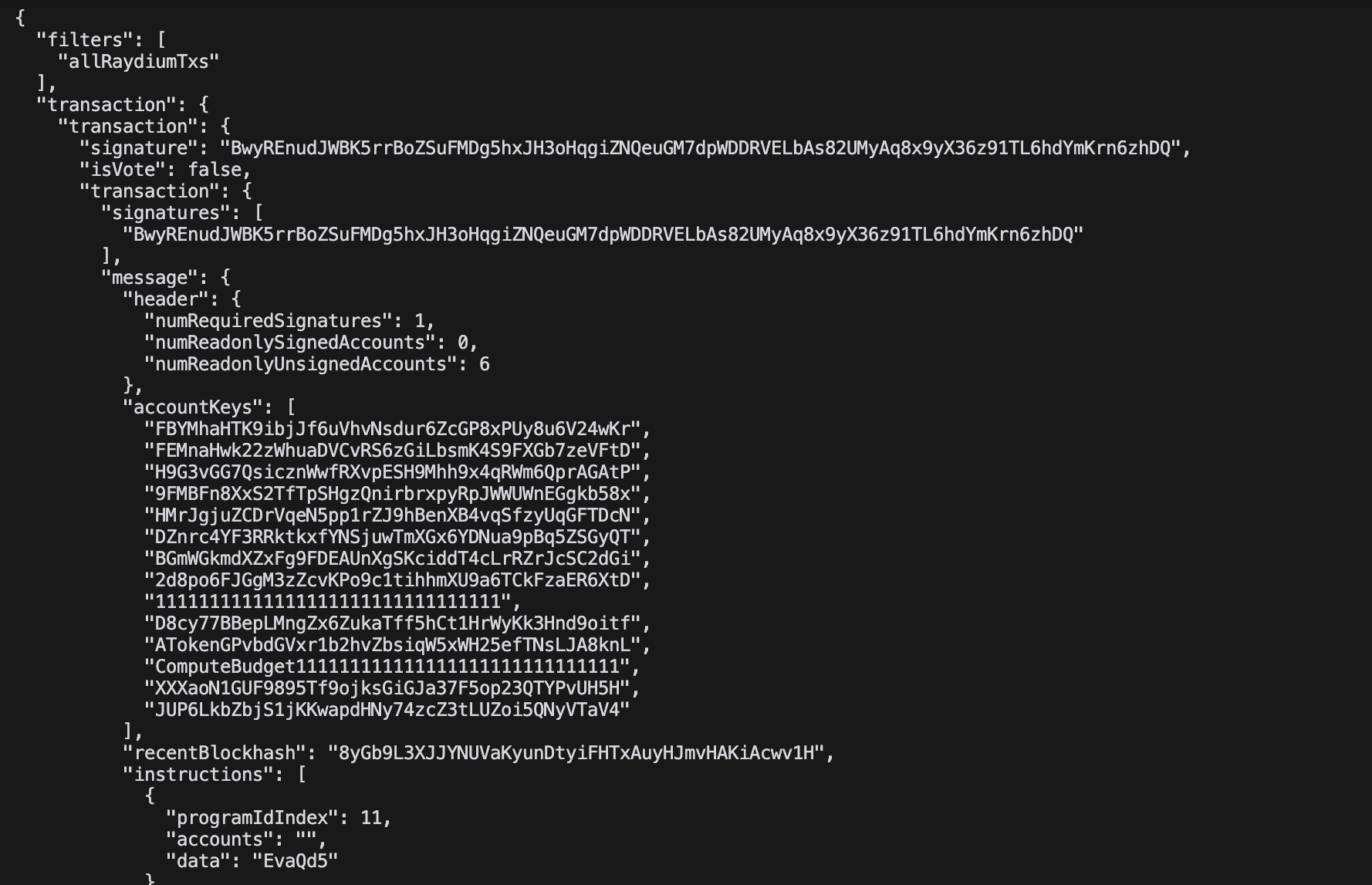
この例では、RaydiumトランザクションをJSON形式でリアルタイムにストリーミングします:
```typescript theme={"system"}
import Client, { CommitmentLevel, SubscribeRequest } from "@triton-one/yellowstone-grpc";
import * as bs58 from 'bs58';
const processBuffers = (obj: any): any =>
!obj ? obj :
Buffer.isBuffer(obj) || obj instanceof Uint8Array ? bs58.encode(obj) :
Array.isArray(obj) ? obj.map(processBuffers) :
typeof obj === 'object' ? Object.fromEntries(Object.entries(obj).map(([k, v]) => [k, processBuffers(v)])) :
obj;
const main = async () => {
const client = new Client("grpc_url",
"x_token",
{ "grpc.max_receive_message_length": 64 * 1024 * 1024 });
const stream = await client.subscribe();
const write = (req: SubscribeRequest) => new Promise((resolve, reject) =>
stream.write(req, (err) => err ? reject(err) : resolve()));
stream.on("data", (data) => {
try { console.log(JSON.stringify(processBuffers(data), null, 2)); }
catch (e) { console.error('Error:', e); }
});
await write({
slots: {},
accounts: {},
accountsDataSlice: [],
transactions: {
allRaydiumTxs: {
accountInclude: ["675kPX9MHTjS2zt1qfr1NYHuzeLXfQM9H24wFSUt1Mp8"],
accountExclude: [],
accountRequired: [],
}
},
blocks: {},
blocksMeta: {},
entry: {},
commitment: CommitmentLevel.PROCESSED,
});
setInterval(() => write({
ping: { id: 1 },
accounts: {},
accountsDataSlice: [],
transactions: {},
blocks: {},
blocksMeta: {},
entry: {},
slots: {},
}).catch(console.error), 30000);
await new Promise((resolve, reject) => {
stream.on("error", (e) => { console.error("Stream error:", e); reject(e); stream.end(); });
stream.on("end", resolve);
stream.on("close", resolve);
});
};
main().catch(console.error);
```
### TypeScript例
この例では、RaydiumトランザクションをJSON形式でリアルタイムにストリーミングします:
```typescript theme={"system"}
import Client, { CommitmentLevel, SubscribeRequest } from "@triton-one/yellowstone-grpc";
import * as bs58 from 'bs58';
const processBuffers = (obj: any): any =>
!obj ? obj :
Buffer.isBuffer(obj) || obj instanceof Uint8Array ? bs58.encode(obj) :
Array.isArray(obj) ? obj.map(processBuffers) :
typeof obj === 'object' ? Object.fromEntries(Object.entries(obj).map(([k, v]) => [k, processBuffers(v)])) :
obj;
const main = async () => {
const client = new Client("grpc_url",
"x_token",
{ "grpc.max_receive_message_length": 64 * 1024 * 1024 });
const stream = await client.subscribe();
const write = (req: SubscribeRequest) => new Promise((resolve, reject) =>
stream.write(req, (err) => err ? reject(err) : resolve()));
stream.on("data", (data) => {
try { console.log(JSON.stringify(processBuffers(data), null, 2)); }
catch (e) { console.error('Error:', e); }
});
await write({
slots: {},
accounts: {},
accountsDataSlice: [],
transactions: {
allRaydiumTxs: {
accountInclude: ["675kPX9MHTjS2zt1qfr1NYHuzeLXfQM9H24wFSUt1Mp8"],
accountExclude: [],
accountRequired: [],
}
},
blocks: {},
blocksMeta: {},
entry: {},
commitment: CommitmentLevel.PROCESSED,
});
setInterval(() => write({
ping: { id: 1 },
accounts: {},
accountsDataSlice: [],
transactions: {},
blocks: {},
blocksMeta: {},
entry: {},
slots: {},
}).catch(console.error), 30000);
await new Promise((resolve, reject) => {
stream.on("error", (e) => { console.error("Stream error:", e); reject(e); stream.end(); });
stream.on("end", resolve);
stream.on("close", resolve);
});
};
main().catch(console.error);
```